

Get started with Cloud Chat
Updated November 17, 2026
Cloud Chat is team chat for your company: channels, direct messages, threads and voice huddles, in the same MyCloudSuites account as your other apps. It’s free.
Do it
- Go to mycloudsuites.com/apps/chat and sign in with your MyCloudSuites account. You can also open Cloud Chat from Apps at the top of any MyCloudSuites app.
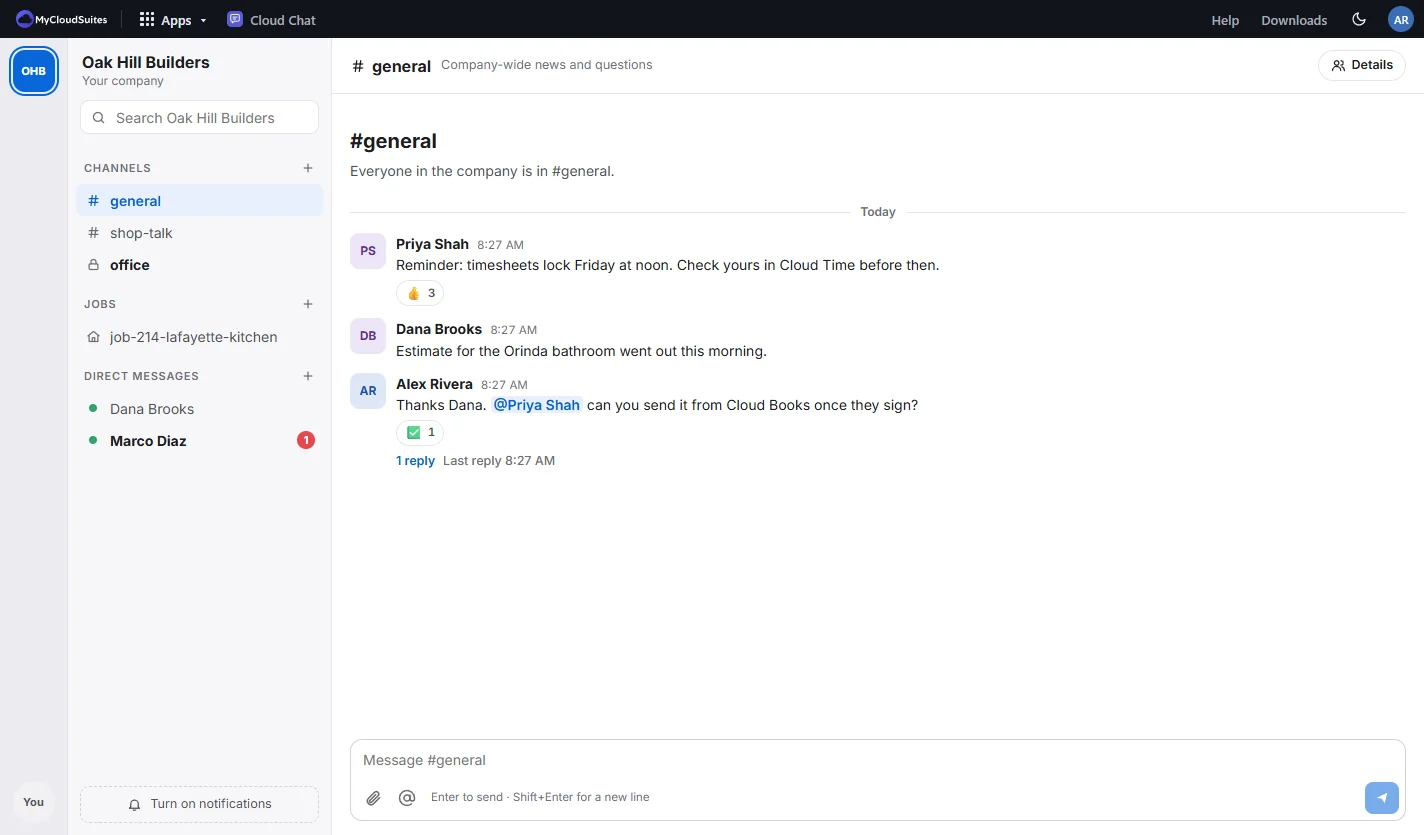
- Your companies are down the left edge. Pick one, and its channels, jobs and direct messages show in the sidebar.
- Open #general. Everyone in the company is in it.
- Type in the message box at the bottom and press Enter. Shift+Enter starts a new line.
Who’s in your company’s chat
Everyone in your company’s organization on MyCloudSuites: its members, with their own MyCloudSuites accounts. You don’t invite them to Chat separately. When someone leaves the organization, they leave its chat too, and their messages stay with the company.
New company
A company you’ve just made already has its channels:
- #general, for everyone in the company.
- Starter team channels, like #crew and #office, depending on what your company does. You’re in them from the start, and each team’s people go in as they join the team.
Then bring your people in: choose Invite people in #general, or go to Company › Members on your account page. See invite people and guests.
Tips
- There’s also a desktop app for Mac and Windows with notifications even when Chat is closed.
- Turn on notifications so you hear about direct messages and mentions.
- Press Ctrl+K (Cmd+K on a Mac) to jump to any conversation.
Need more? Channels, direct messages, or contact us.