

Add pictures and wipeouts
Updated November 18, 2026
Pictures show a site photo, a logo or an aerial on the drawing. A wipeout blanks out lines behind a note.
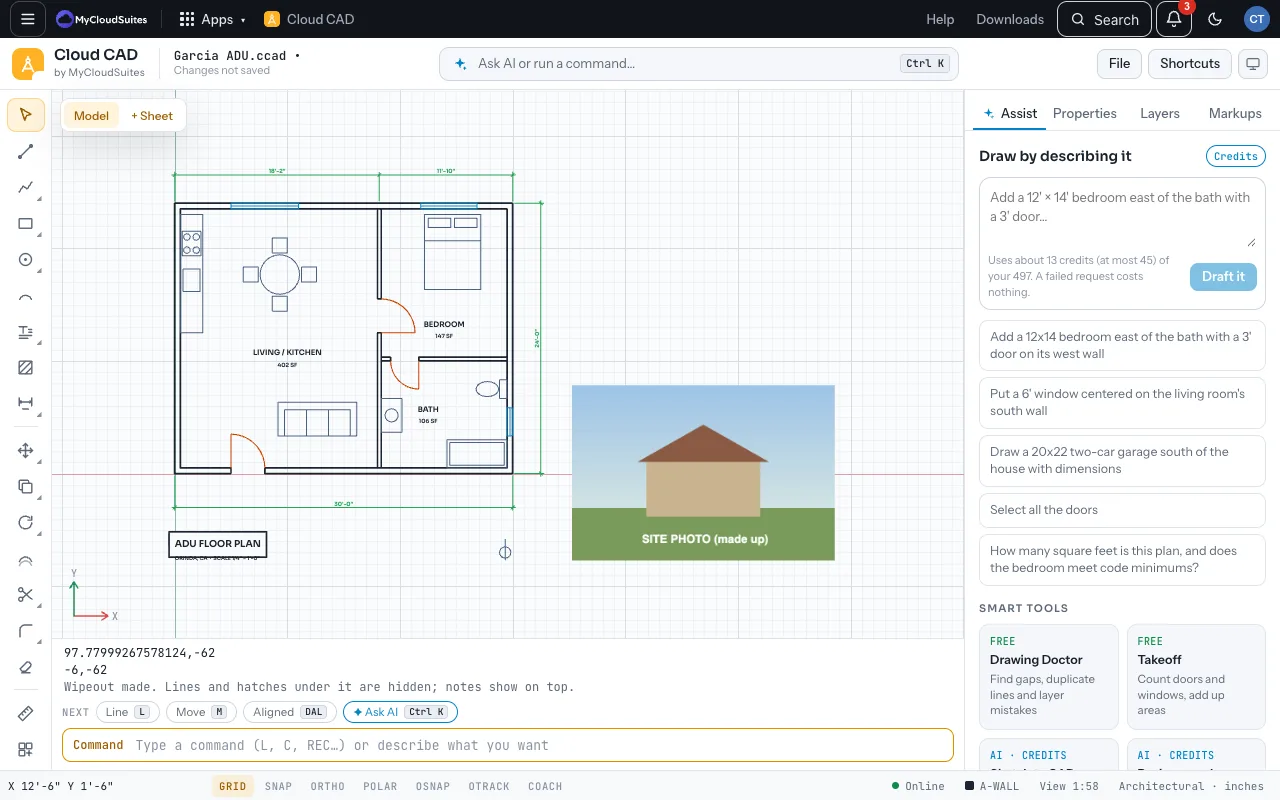
Add a picture
- Type IMAGEATTACH (or IAT) and choose a PNG, JPEG, WebP or GIF.
- Click its bottom-left corner, then click or type its width.
- Use Scale with R to match a known length, Properties to fade it, and ICL to clip it.
Very large pictures are made smaller first (4096 pixels across at most) so drawings stay a sensible size.
Make a wipeout
- Type WO and click the corners of the area, then press Enter. Or type P and click a closed polyline or circle.
- Lines and hatches drawn before it are hidden behind it. Text, dimensions, leaders and tables always show on top.
- F at its first prompt turns every wipeout’s frame on or off; one wipeout’s Frame is in Properties.
Coming soon
- Pictures don’t print in PDFs yet, and stay out of DWG and DXF (those formats only link to picture files).
Need more? Trace over a PDF, or contact us.