

Use the AI assistant
Updated November 17, 2026
The assistant is a chat panel beside your document. Ask it about the PDF, get a summary or a translation, or ask it to change something. It shows each change for you to approve before it’s made. You can pay with MyCloudSuites AI credits or use your own Claude API key.
Open the assistant
Choose Assistant at the top right of the window, or press Ctrl+Shift+A (⌘⇧A on a Mac). It’s also View › Claude Chat, and Claude in the AI group of the Tools tab.
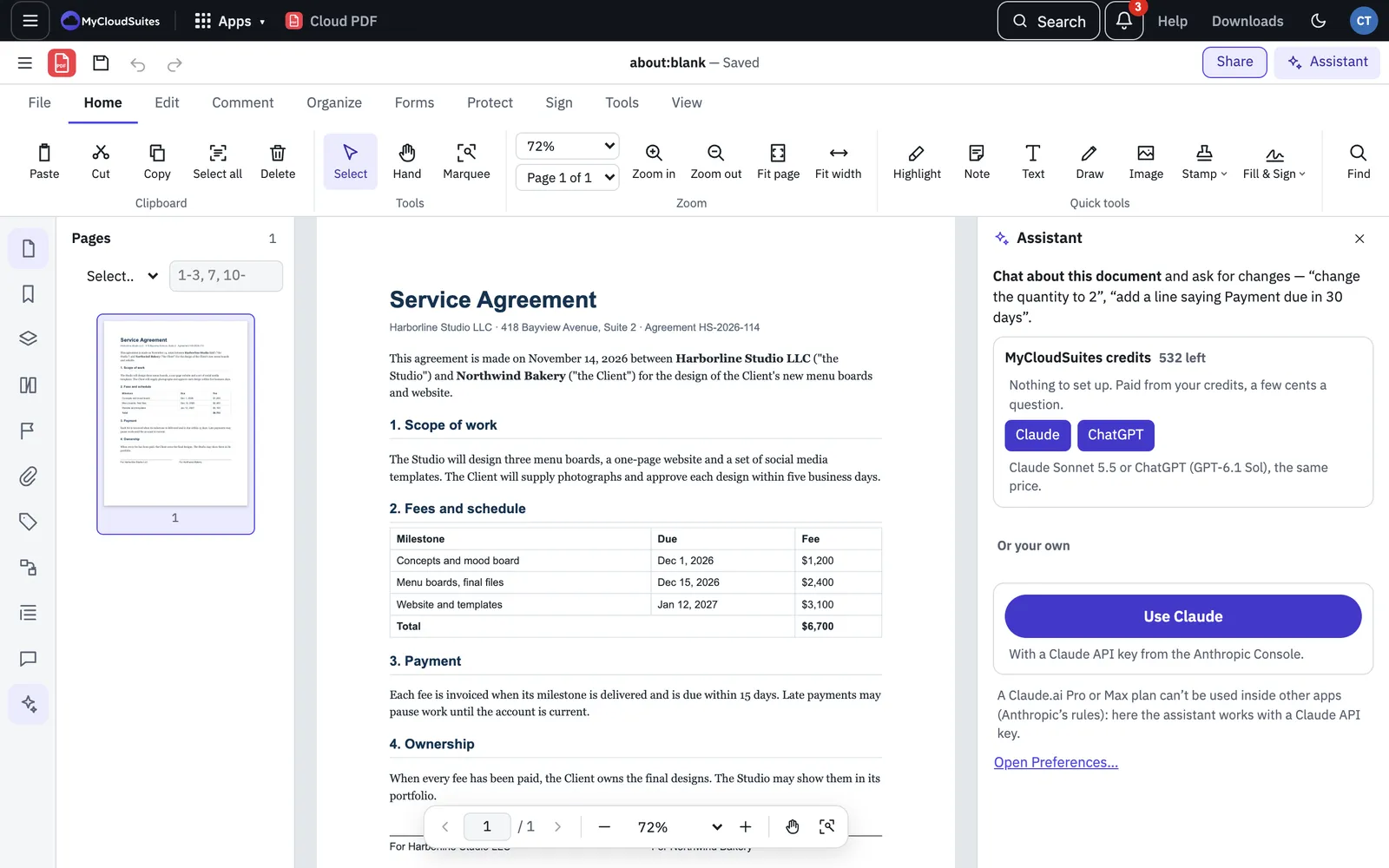
Choose how to pay
The first time, the panel asks how you want to use it.
- MyCloudSuites credits. When you’re signed in and have credits, choose Claude or ChatGPT. There’s nothing to set up. Both cost the same. A question costs credits by its size, mostly the pages that go with it. The panel shows the price before you send, as “about N credits a question”. For example, one short question about a 2-page PDF can be about 18 credits. Credits come in packs, starting at 500 credits for $5, and don’t expire. Buy them on your account page at mycloudsuites.com/account#ai: choose a pack and pay on Stripe’s secure page. In the desktop app, sign in first in Preferences › Account.
- Your own Claude API key. Choose Use Claude. The Anthropic Console opens so you can create a key. Paste it into Paste your Claude API key and choose Save. Anthropic bills you for what you use.
- Your ChatGPT plan (desktop app only). Choose Continue with ChatGPT and sign in in your browser. Requests then use your ChatGPT Plus or Pro plan.
A Claude.ai Pro or Max plan can’t be used inside other apps. In the desktop app it works with Cloud PDF through Connect AI Apps (below).
A file in a company’s drive is the company’s work, so questions about it are paid with the company’s credits, not yours. If the company’s credits can’t be used, the panel says why.
While you pay with credits, the top of the panel shows your balance. If you’ve also saved a key, choose Use my own key or Use credits to switch.
Ask about your document
- Under Send with the first question, choose The whole document or Pages and a range.
- Type your question and choose Send, or press Enter.
Answers name their pages, such as p. 2. Click one to go there.
The buttons above the chat do common jobs in one click: Summarise, Change a value…, Fix typos, Translate page (pick the language beside it), Find personal info, Suggest alt text and Draft field names.
To ask about a few words, select them on the page and choose Ask about selection, or right-click them and choose Ask AI About Selection. Then choose Explain, Translate, or type your own question.
Changes you approve
Ask for a change in plain words, like “change the quantity to 2”. The assistant shows the change, old text and new, with Approve and Decline. When it proposes several in one message, Approve all in this message takes them all.
Each change can be undone with Undo. Approved changes aren’t saved until you save: the panel shows Changes not saved yet with a Save button.
To skip the question each time, tick Let Claude make changes without asking (the name matches the assistant you chose).
Clear chat forgets the chat for this document. Stop ends an answer early.
What’s sent, and where
- Only the pages you choose go to the AI provider with your question: Anthropic for Claude, OpenAI for ChatGPT. The panel says which.
- With your own Claude key in the browser, questions go from your browser straight to Anthropic. The key never goes to MyCloudSuites. It’s kept for this tab only, unless you tick Remember on this browser. Remove takes it away.
- In the desktop app, your key is checked, then kept encrypted on your computer.
- With credits, MyCloudSuites passes your question to the provider and charges your credits.
Connect AI apps (desktop app only)
The desktop app can also let other AI apps work with your PDFs: Claude Desktop, Claude Code, claude.ai and ChatGPT. Choose Connect apps in the AI group of the Tools tab, then pick an app and follow the steps. You choose which folders they can use and what they’re allowed to do.