

Views: Normal, Outline, Slide sorter, Notes page and Reading view
Updated November 13, 2026
The View tab changes how you see the presentation. The view buttons are also at the bottom right of the window.
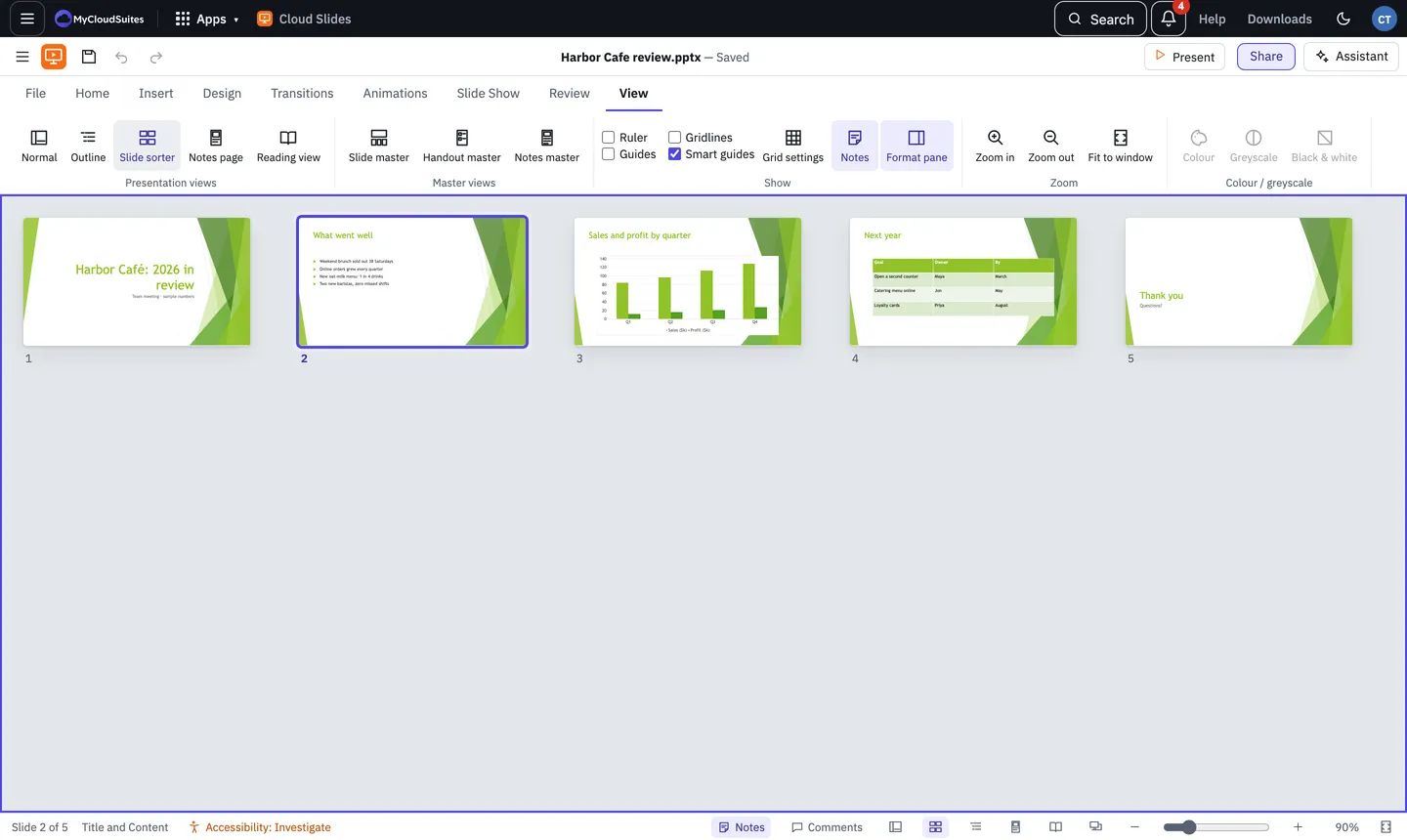
The views
- Normal: one slide at a time, with the slide list and notes. This is where you’ll spend most time.
- Outline: every slide’s title and text as a list you can type in. Enter starts a new line, Tab moves a line in a level, and Shift+Tab moves it out, up to a slide of its own.
- Slide sorter: every slide in a grid. Drag to reorder, and double-click a slide to open it.
- Notes page: the slide with its notes as they’ll print, and you can edit the notes here.
- Reading view: the slide show inside the window, with buttons to move through it. Press Escape to come back.
Zoom
Choose View › Zoom in, Zoom out or Fit to window, or use the slider at the bottom right. Shortcuts: Ctrl+=, Ctrl± and Ctrl+0 (Cmd on a Mac).
Show and hide parts of the window
On the View tab, tick Ruler, Gridlines, Guides or Smart guides, and turn Notes and the Format pane on and off.
Need more? Speaker notes, or contact us.