

Heal, clone and remove blemishes
Updated November 13, 2026
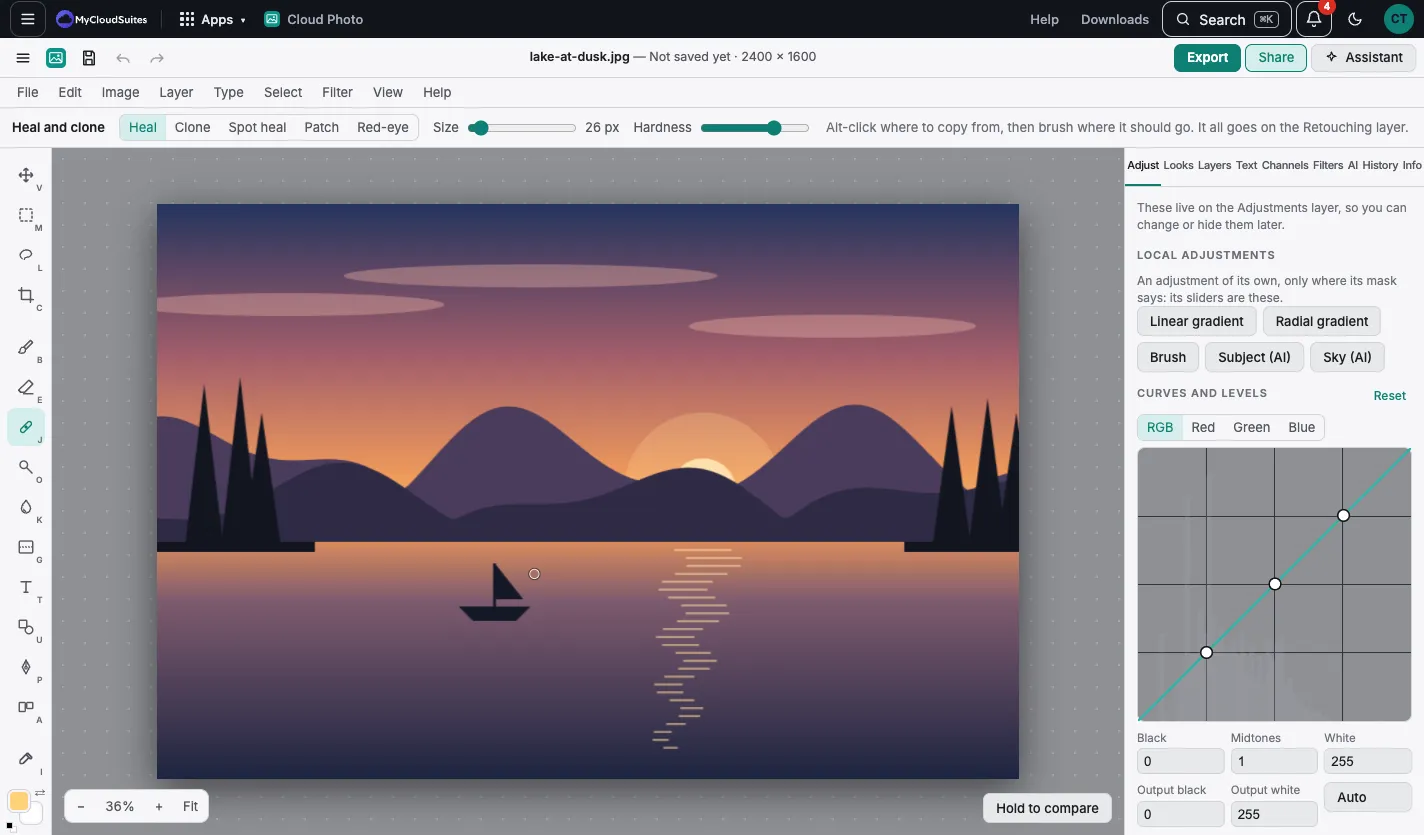
The Heal and clone tool (J) removes marks, spots and things that shouldn’t be there. Its work goes on a Retouching layer, so the photo stays as it was.
Remove a spot
- Choose Heal and clone and Spot heal.
- Set Size a little bigger than the spot.
- Click or brush over it.
Heal and clone from another place
- Choose Heal (blends in) or Clone (copies exactly).
- Alt-click where to copy from, then brush where it should go.
Patch replaces an area you draw around. Red-eye fixes red eyes from a flash.
More retouching
- Dodge and burn (O) lightens or darkens where you brush.
- Sponge, blur, sharpen (K) changes color, softness or sharpness where you brush.
- Content-aware fill and move removes bigger things.
- Filter › Retouch › Smooth skin evens skin and keeps detail.