

Filters
Updated November 13, 2026
Filters in Cloud Photo stay editable: each one sits in the layer’s stack in the Filters tab, with its own sliders.
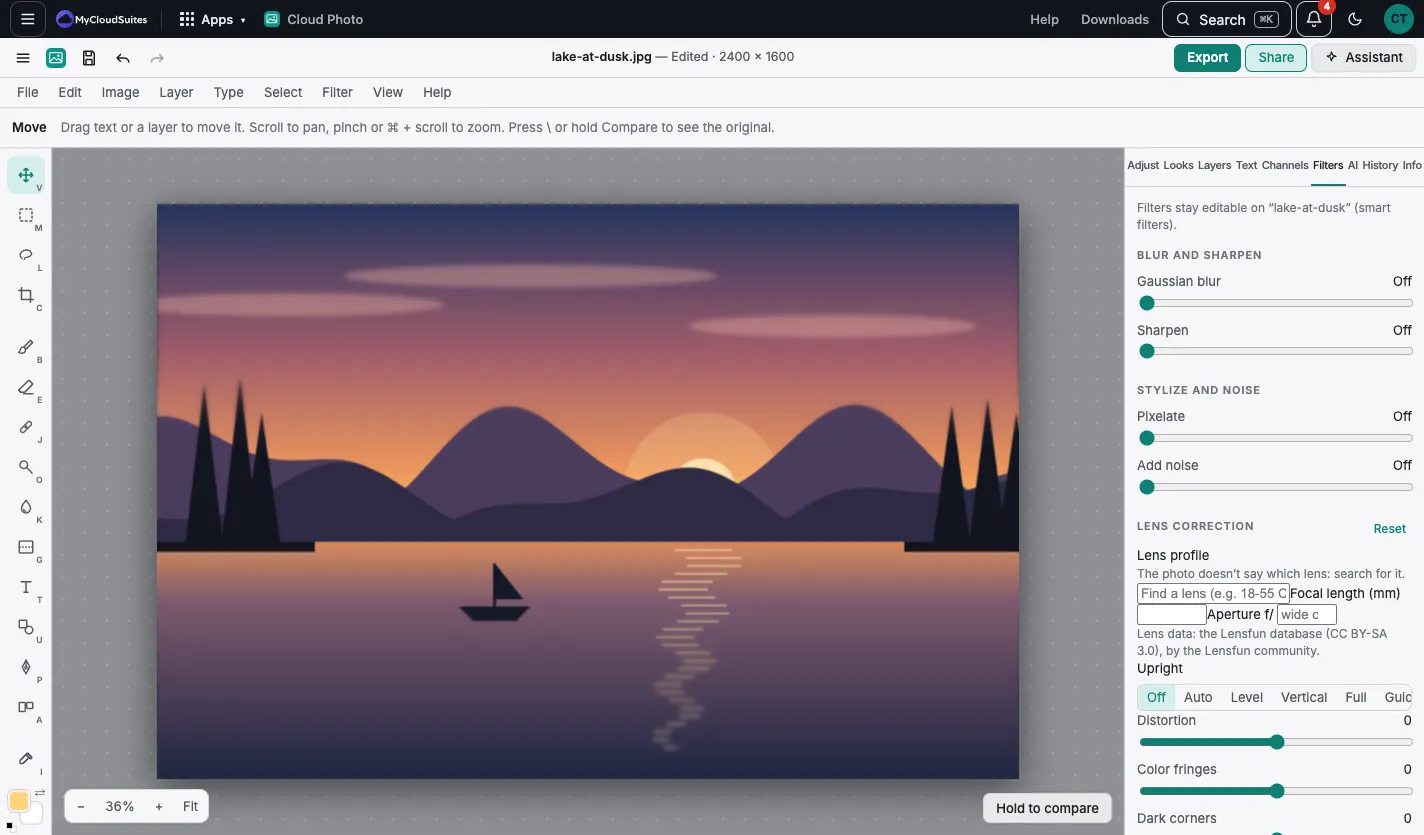
Add a filter
- Pick a layer.
- Choose one from the Filter menu, or from the Filters tab.
- Set its sliders. Change them, reorder filters or turn one off at any time.
The filters
- Blur: Gaussian, motion, lens, tilt-shift, surface, box, iris, field, path and radial.
- Sharpen: sharpen, smart sharpen and unsharp mask.
- Noise: add noise, reduce noise, median, dust and scratches, despeckle and Remove JPEG artifacts.
- Stylize: oil paint, emboss, find edges, posterize, solarize, diffuse, wind and glowing edges.
- Pixelate: pixelate, crystallize and color halftone.
- Distort: twirl, pinch, spherize, wave, ripple, zigzag and polar coordinates.
- Other: high pass, offset, maximum and minimum. Render › Clouds.
- Retouch › Smooth skin.
Tips
- A filter mask shows the filter only where you paint.
- Filter › Lens correction… fixes your lens: see Lens correction.