

Crop and straighten
Updated November 13, 2026
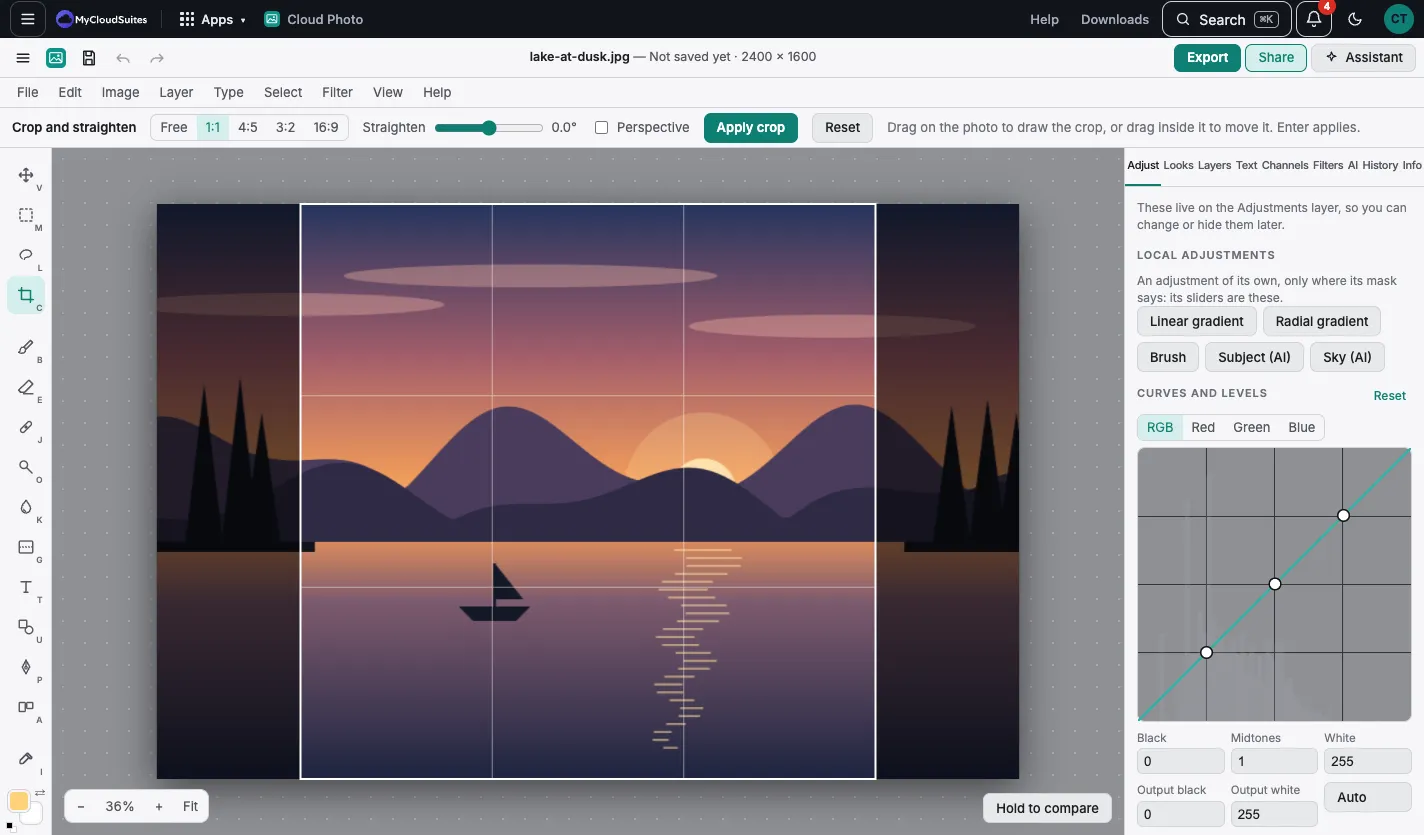
Crop
- Choose Crop ©.
- Pick a ratio: Free, 1:1, 4:5, 3:2 or 16:9.
- Drag on the photo, or drag inside the box to move it.
- Choose Apply crop, double-click, or press Enter.
Straighten and perspective
- Straighten turns the photo to level a tilted horizon.
- Perspective lets you drag the four corners onto something that should be square, such as a document or a sign.
Good to know
- Cropping keeps the pixels outside the box. Undo brings them back.
- Select › Crop to selection crops to a selection.