

Quick note from any app
Updated November 14, 2026
In the Mac and Windows apps, a shortcut opens a small window over whatever you’re doing. Type, save, and it’s in your notes.
Write a quick note
- Press ⌃⌥N on a Mac (Control, Option, N) or Ctrl+Alt+N on Windows, in any app. Or choose File › Quick Note.
- Type. The first line is the title. Start a line with [] and a space for a checklist box.
- Press ⌘Enter (Ctrl+Enter on Windows) or choose Save.
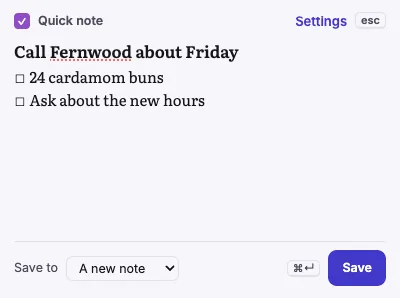
It’s saved as a new note. To add quick notes to today’s note instead, choose Today’s note under Save to.
Keep it working after a restart
The first time you save a quick note, Cloud Notes asks Keep the shortcut working after a restart? Choose Yes, keep it working and Cloud Notes waits in the menu bar (Mac) or tray (Windows) and starts when you log in, so the shortcut always works. Choose Not now to keep it working only while Cloud Notes is open. You can change it any time in Settings.
Tips
- Esc closes the window and keeps what you typed for next time.
- The menu bar or tray icon has Quick note too.
- With the main window closed, the note goes straight into your notes folder.
If something goes wrong
- The shortcut does nothing. Another app may use it. Choose a different one in Settings…; it says if a shortcut is taken.
Need more? Settings, or contact us.