

Cloud Chat on your phone
Updated November 18, 2026
Cloud Chat works on any phone today, huddles and cameras included. For the best of it, install it from your phone’s browser: it opens like an app, from its own icon, without the browser’s bars.
Install it
Android (Chrome):
- Open mycloudsuites.com/apps/chat and sign in.
- Tap the browser’s menu (⋮), then Install app (or Add to Home screen).
- Open Cloud Chat from its new icon.
iPhone or iPad (Safari):
- Open mycloudsuites.com/apps/chat and sign in.
- Tap Share, then Add to Home Screen, then Add.
- Open Cloud Chat from its new icon. On an iPhone, notifications only work from the home-screen icon (see Notifications).
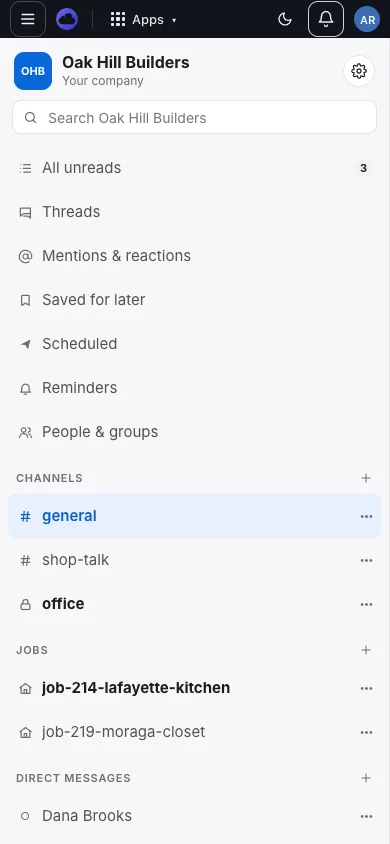
On the phone
- The list of conversations, then a conversation, then a thread, one at a time, with buttons big enough to tap with gloves on.
- A finished Cloud Time or Cloud Books item shows on one line; tap it to read all of it.
With no signal
Installed Cloud Chat keeps your recent conversations on the phone, so you can read them on a site with no signal. What you write waits on the phone and goes by itself, in order, when you’re back online. A bar at the top says when you’re offline.
It keeps them only on your own phone or computer where Chat is installed. Chat in an ordinary browser tab keeps nothing. Everything kept is removed when you sign out, or when someone else signs in on that phone.
What’s coming
- Cloud Chat in the App Store for iPhone. It’s built and goes to Apple for review next.
- We’ll update this page when it’s out.
Need more? Notifications, the desktop app for Mac and Windows, or contact us.